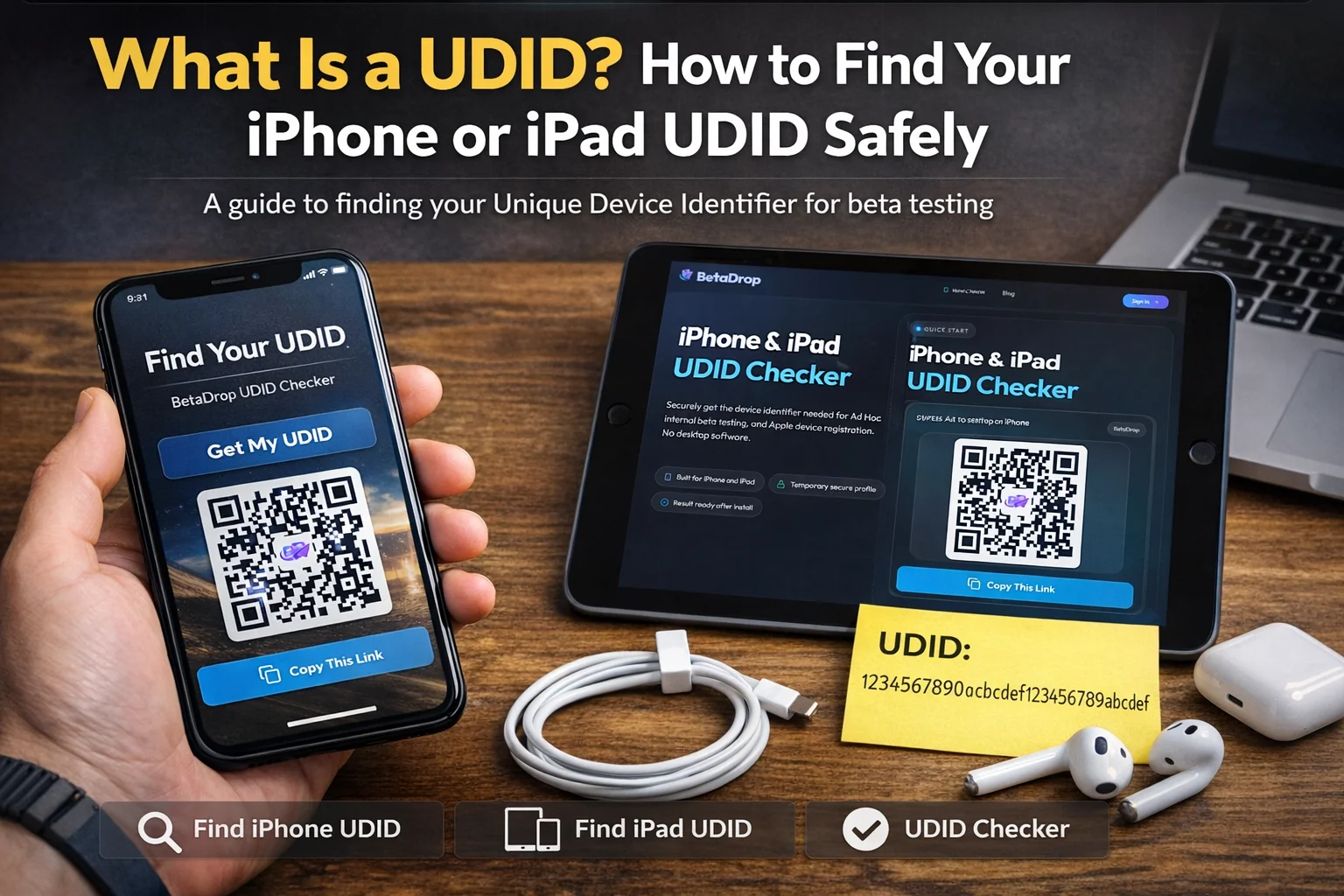
The fastest way to find your iPhone UDID is to open a browser-based UDID checker in Safari on the device itself and install the temporary profile it offers — no computer needed. If you have a Mac or PC, connecting the device and clicking the identifier line in Finder or iTunes reveals the same UDID.
If an iOS developer, QA lead, or client success manager asks for your UDID, they are usually trying to register your device for beta testing. That request is common when a team uses Ad Hoc distribution instead of TestFlight and needs permission to install a build on a specific iPhone or iPad.
This guide explains what a UDID is, why beta testers are asked for it, and the safest ways to find it in 2026. It also shows why a browser-first flow like BetaDrop's UDID checker is often the fastest option for non-technical testers.
What is a UDID on iPhone or iPad?
UDID stands for Unique Device Identifier. It is a device-specific identifier used by Apple tooling and distribution workflows to distinguish one iPhone or iPad from another.
In practical terms, the UDID matters when a developer needs to register your exact device for a provisioning profile. That is why so many people search for terms like what is UDID, find iPhone UDID, and UDID checker right before a beta build is shared.
A UDID comes in one of two formats depending on how old the device is. Devices from the iPhone XS generation onward (Apple A12 chip and newer) return a 25-character value shaped as eight characters, a hyphen, then sixteen more — for example 00008030-000A1B2C3D4E5F60. Older iPhones and iPads return a 40-character hexadecimal string. Both are legitimate UDIDs, so copy whichever one your device shows without trimming, spacing, or reformatting it.
If you are testing an iOS build outside the App Store, the UDID is often the missing piece that lets the developer approve your device.
Why developers ask for your UDID for beta testing
Apple does not allow Ad Hoc builds to run on any random device. The developer has to add each tester's iPhone or iPad to a provisioning profile first. That profile is then embedded into the signed app build.
- Ad Hoc distribution: The app only installs on approved devices that have been added to the provisioning profile.
- External client review: Agencies and product teams often need a simple way to register client devices without asking them to install Xcode or connect to a Mac.
- Faster QA onboarding: A clean UDID capture process reduces support messages, copy-paste mistakes, and delays in release testing.
Teams reach for Ad Hoc when they want to skip App Store review and TestFlight invites but still ship to real hardware. If that describes your project, compare the workflows in our TestFlight alternative overview and the walkthrough on how to distribute iOS apps without TestFlight.
If you want more background on the Apple distribution side, see our guide to iOS Ad Hoc distribution and our breakdown of provisioning profiles.
The easiest way to find your UDID without a computer
The easiest route for most testers is to use a trusted web tool in Safari on the exact iPhone or iPad that needs registration. That is the approach BetaDrop uses.
- Open the BetaDrop UDID checker in Safari on the device you want to register.
- Start the check and allow the temporary configuration profile to download.
- Open Settings and tap Profile Downloaded near the top. If that banner is gone, go to Settings → General → VPN & Device Management and open the profile from there.
- Install the temporary profile so Apple can return the device identifier to the checker.
- Return to the result page and copy or submit the UDID to the developer who requested it.
This method is popular because it avoids the friction of cables, Finder, iTunes, and desktop setup. It is especially useful for client stakeholders, remote QA teams, and non-technical testers.
How to find your UDID with Finder on Mac
If you have a Mac, Finder is still a valid option for locating the device identifier manually.
- Connect the iPhone or iPad to your Mac with a cable.
- Open Finder and select the device.
- In the device summary area, click the identifier line until the displayed value changes to the UDID.
- Copy the UDID and send it to the team handling provisioning.
This is workable for developers and internal QA, but it is not usually the best experience for external testers.
How to find your UDID on Windows
On Windows, testers usually rely on the Apple Devices app or iTunes if it is available.
- Connect the device to your Windows computer.
- Open the Apple Devices app or iTunes.
- Select the device summary screen.
- Click the serial number area until the value switches to the UDID.
- Copy the identifier and share it with the developer.
Best practices before you share your UDID
A UDID is not a password, but it still belongs in a trusted workflow. Good beta operations treat it as deployment data, not something to scatter across random forms or chat threads.
- Only share your UDID with a developer, QA lead, or platform you recognize.
- Prefer branded HTTPS pages so you know the registration request is coming from the correct team.
- If you use a profile-based checker, remove the temporary profile once the UDID is captured: open Settings → General → VPN & Device Management, tap the profile, and choose Remove Profile.
Common UDID checker problems and quick fixes
The profile will not download
Retry in Safari. In-app browsers inside email, Slack, WhatsApp, or social apps often interrupt the Apple profile flow.
You cannot find the downloaded profile
Open Settings and look for Profile Downloaded near the top. If it is not shown, use the manual profile section in Settings and try the flow again.
The result page stays pending
Return to the browser after profile installation so the callback can complete. If you still get stuck, our UDID checker help page walks through the troubleshooting steps.
From UDID to installed build with BetaDrop
Capturing the UDID is only step one; the tester still needs the actual app. Once your device is registered, the developer can upload the signed .ipa to BetaDrop and get an instant over-the-air install link plus a QR code. You install straight from Safari — no TestFlight invite, no App Store review wait, and no tester account — and the build lands on your home screen like any other app. Registered builds stay live for about 30 days and cap at 512 MB, which covers almost every Ad Hoc test; if you want the mechanics, our guide on OTA .ipa installs walks through it.
Frequently Asked Questions
Why is my UDID 25 characters when other guides show 40?
Both lengths are valid. iPhones and iPads from the iPhone XS generation onward (A12 chip and newer) report a 25-character UDID in the format of 8 characters, a hyphen, then 16 more, such as 00008030-000A1B2C3D4E5F60. Older devices return a 40-character hexadecimal string. Send whichever value your own device shows, exactly as it appears, without trimming or reformatting it.
Is a UDID the same as a serial number?
No. A serial number and a UDID are separate identifiers, and Ad Hoc provisioning needs the UDID specifically. If a screen only shows a serial number, keep clicking or tapping the identifier label until the value changes to the longer UDID before you copy it.
Do I need a Mac to find my UDID?
No. That is why a browser-based checker is useful. Most testers can open the checker in Safari on the device itself and read back the UDID without Finder, iTunes, or Xcode.
Can I find a UDID on an iPad too?
Yes. The same Safari profile method and the desktop methods work on iPad exactly as they do on iPhone. Just make sure you run the check on the specific iPad you want registered, because each device has its own UDID.
What does the developer do with my UDID after I send it?
They add your UDID to their Apple Developer account, rebuild the app so its provisioning profile includes your device, and share the signed build with you. An Apple account can register up to 100 devices of each type per membership year for Ad Hoc testing, so developers usually collect only the UDIDs they actually need.
How do I install the build once my device is registered?
The developer uploads the signed .ipa to a distribution service and sends you an over-the-air install link or QR code. With BetaDrop you open that link in Safari and tap install, with no TestFlight, App Store, or cable required. The build lands on your home screen like any other app.
Summary
If you only remember one thing, remember this: the safest low-friction way to get an iPhone or iPad UDID is to use a trusted Safari-based checker on the device itself.
That keeps beta onboarding simple for testers and keeps provisioning workflows faster for the teams shipping the app. When you are ready, open the BetaDrop UDID checker and start the registration flow.
